
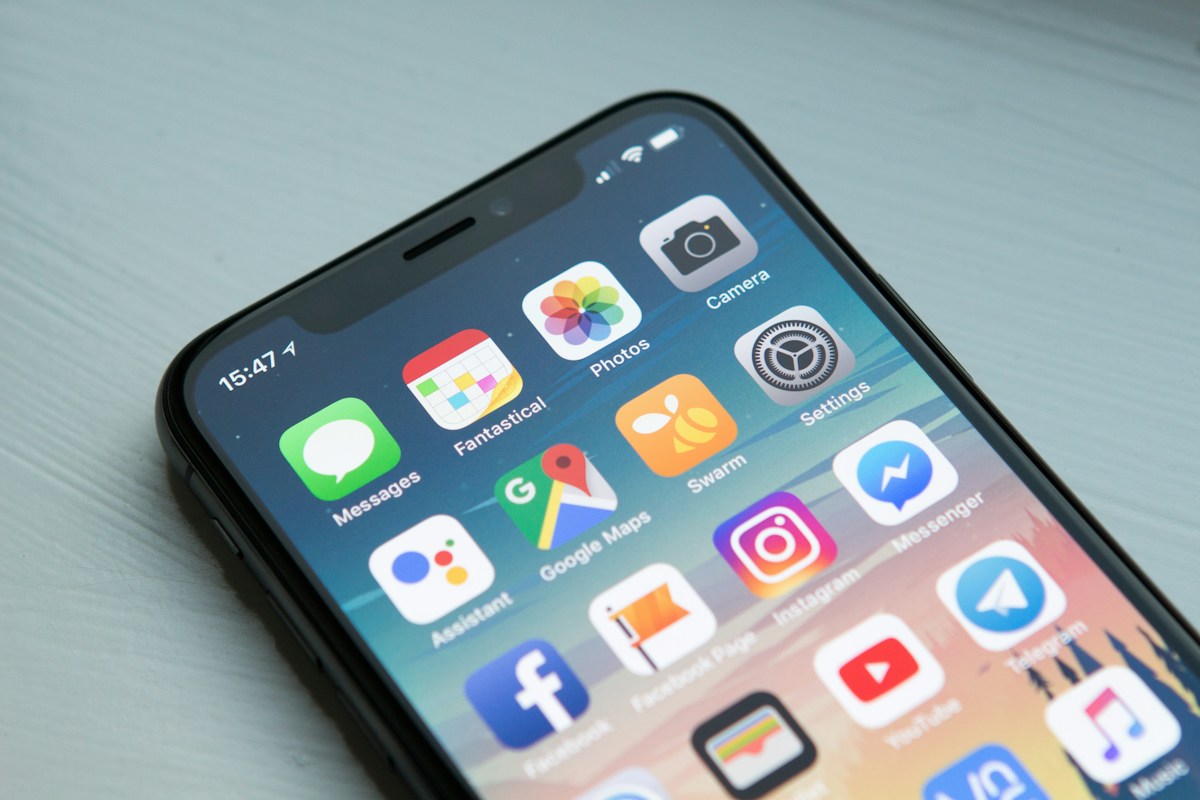
Every iPhone owner who uses a Windows laptop knows the pain: AirDrop works like absolute magic—until you need to get a 4K video or photo album onto your PC. Apple's walled garden treats Windows machines like they do not exist. Here is how to achieve instant, zero-cable AirDrop speeds directly into Windows without installing iTunes or bloated third-party software.
Why Apple Refuses to Bring AirDrop to Windows
AirDrop relies on a combination of Bluetooth Low Energy (BLE) discovery and a proprietary peer-to-peer Wi-Fi protocol (Apple Wireless Direct Link or AWDL). Because AWDL is closed-source and deeply baked into macOS and iOS network drivers, Apple has zero incentive to port it to Windows. It is an intentional design choice aimed at pushing Windows users toward buying a Mac.
For years, Windows users were forced into agonizing workarounds:
- Installing iTunes for Windows: Clunky, slow, and notorious for breaking background USB driver sync.
- iCloud for Web: Requires two-factor authentication, limits upload speeds, and compresses certain media formats.
- Emailing files to yourself: Instantly blocked by 25MB attachment ceilings.
- Messaging Apps (WhatsApp/Telegram): Destroys 4K video bitrates and strips high-dynamic-range (HDR) color profiles.
The Modern Solution: Browser-to-Browser AirDrop
You do not need Apple's proprietary AWDL drivers to create a blazing-fast local transfer pipeline. Every modern web browser—Safari on your iPhone and Edge or Chrome on your Windows PC—supports WebRTC (Web Real-Time Communication).
When both devices open Sendly on the same local Wi-Fi network, they discover each other instantly using localized peer signaling. A direct, encrypted peer-to-peer tunnel is forged between your iPhone and PC, giving you true AirDrop-grade speeds across platforms.
Step-by-Step: How to Transfer in Under 10 Seconds
- Open Sendly on Your PC: Navigate to sendlyshare.com in your Windows browser. You will see an instant 6-digit PIN code or a PairDrop QR code.
- Scan with iPhone Camera: Open your iPhone camera and point it at the QR code on your PC monitor (or type the 6-digit PIN in Safari).
- Select Your Files: Tap 'Choose Files' or select photos from your iOS Camera Roll. You can select full-resolution RAW photos, 4K 60fps video clips, or ZIP files.
- Instant Transfer: Watch the progress bar race across both screens. The files land directly in your Windows 'Downloads' folder in their original, uncompressed binary format!
Why Transfer Speeds Are So Fast
Because the connection is peer-to-peer over your local Wi-Fi router, the data never uploads to a remote cloud server. If your router supports Wi-Fi 6 or 5GHz AC, transfer speeds frequently clock between 50MB/s and 100MB/s—fast enough to transfer a 2GB 4K video clip in under 30 seconds.